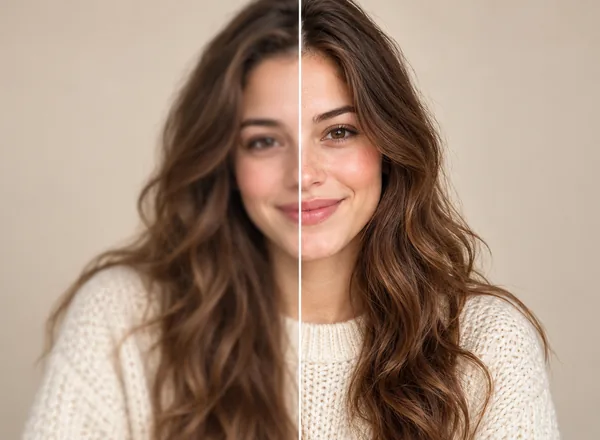


Remove.bg has been a familiar choice for one-click background removal. But with its standalone website scheduled to close on December 1, 2026, now is a good time to explore alternatives. Which one should you choose?
The right alternative depends on more than cutout quality—it also needs to fit how you’ll use the image. For a profile picture or presentation, a quick, free tool may be enough. Custom prints may require sharper, higher-resolution images, while online sellers may need consistent product photos and batch processing.
Below, we compare 7 Remove.bg alternatives, including Artguru, Photoroom, and Adobe Firefly. You’ll find each tool’s strengths, ideal uses, and key limitations to help you choose the right option for your photos, projects, or business.
TL;DR: Which Remove.bg alternative fits your needs?
| Tool | Best for | Key features |
|---|---|---|
| Artguru | Custom prints that need clearer images and cutouts | AI enhancement, 4K/8K output, background removal and replacement |
| Photoroom | E-commerce product photos | AI backgrounds, brand templates, batch editing |
| Adobe Firefly | Free, one-off high-resolution cutouts | Transparent PNG downloads; free 4K download without resizing in our test |
| Pixlr | Browser-based batches with quick corrections | Batch background removal, manual touch-ups, Auto Crop, ZIP downloads |
| Slazzer | Large-scale desktop background removal | Batch cutouts, shared output settings, API and plugins |
| Clipping Magic | Cutouts that need precise manual corrections | Keep/remove controls, hair and edge tools, shadows |
| Leonardo.ai API | Migrating an existing Remove.bg integration | Background removal API, migration guidance, additional image tools |
7 Best Remove.bg Alternatives in 2026
1. Artguru – Best for AI Enhancement and Background Removal for Custom Prints
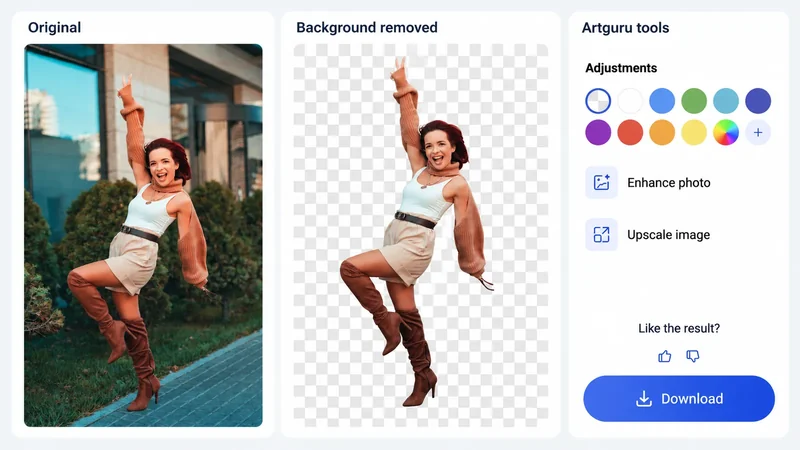
Custom printing often requires clear, high-resolution images. That can be a challenge with customer-supplied photos.
Someone may send a small pet photo for a personalized T-shirt, a blurry portrait for a mug, or a compressed design for a gift. Removing the background makes the image easier to use in a layout, but it won’t fix blur or improve clarity on its own. These images may benefit from enhancement before background removal.
Artguru is a Remove.bg alternative for photos that need both better clarity and background removal. Its AI tools help sharpen details and reduce noise in small or blurry images, with 4K and 8K output options available.You can then use its Background Remover to create a transparent PNG for your design. If you want to give the photo a new setting, the Background Changer lets you add a solid color or upload your own background image.
For print shops, personalized gift sellers, and anyone making a custom photo gift, the enhanced cutout can then be placed into a T-shirt, mug, or gift layout.
Key features
- AI enhancement and upscaling for small or blurry images.
- 4K and 8K output options.
- Automatic background removal with transparent PNG downloads.
- Background replacement using a solid color or your own image.
What to know
Free image enhancement and background removal support output up to 1K with an Artguru logo watermark. A paid plan unlocks watermark-free results and output up to 8K.
Best fit: Custom print and personalized gift projects that need both image enhancement and background removal.
Enhance your photo. Remove the background.
Get a clearer image and a clean cutout for your next project with Artguru.
Try Artguru2. Photoroom – Best for E-commerce Product Photo Workflows
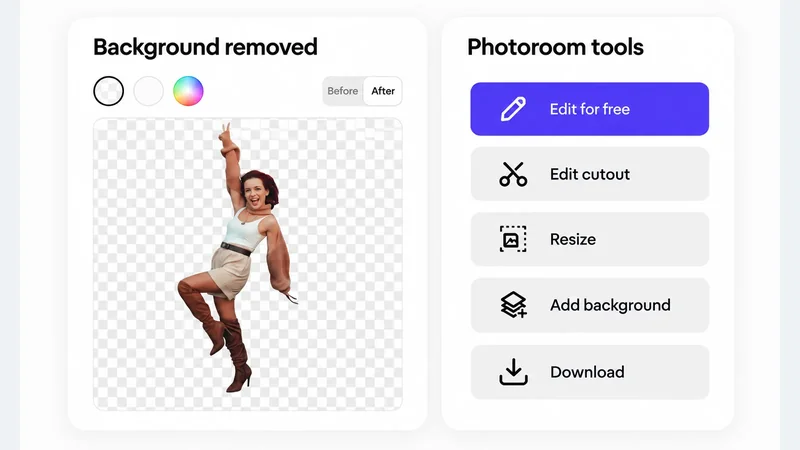
Photoroom is worth considering as a Remove.bg alternative if you need finished product photos, not just transparent cutouts. Backgrounds, framing, and sizing all affect how an item looks in a listing—and how well it fits alongside the rest of a collection.
With Photoroom, you can remove a product’s background and replace it with a studio-style setting or lifestyle scene, or apply a brand template to prepare it for your listings. When you have a collection to prepare, the batch editor lets you apply shared backgrounds, sizes, and positioning across multiple images. That saves you from repeating the same edits for every product.
The mobile app is handy for sellers who photograph inventory on their phones, while the web editor provides another way to prepare images for their listings.
Key features
- Automatic product background removal.
- AI-generated studio backgrounds and lifestyle scenes.
- Brand templates for product listings.
- Batch controls for backgrounds, framing, and sizing.
- Mobile and browser-based editing.
What to know
According to Photoroom’s pricing page, 4K image and video output requires Ultra or Enterprise. Preset AI shadows are included in paid plans, but adjustable AI shadows require Enterprise.
Best fit: Online sellers who need consistent, styled product photos for their listings.
3. Adobe Firefly – Best for Free, One-Off High-Resolution Cutouts
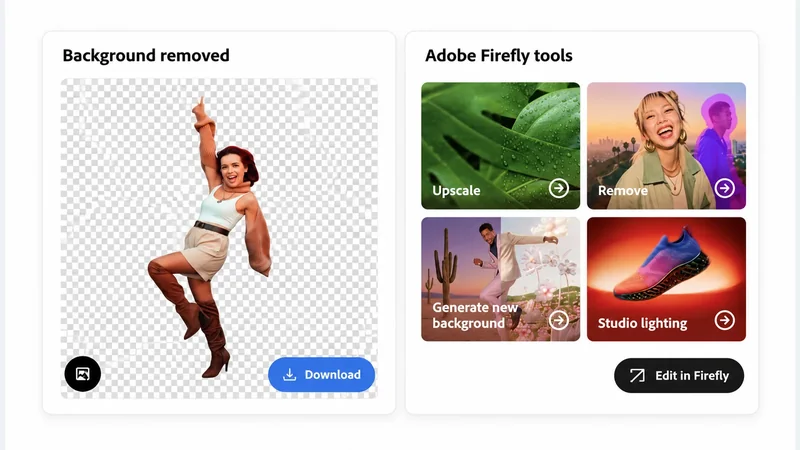
If you only need to remove a background occasionally, Adobe’s free tool is worth considering, especially when download resolution matters.
In our test, Adobe’s online background remover let us download a 4K cutout for free without reducing its resolution. Some other tools reserve high-resolution downloads for paid plans, making this a useful option when you need more than a small preview.
The process is straightforward: upload your photo, let the Adobe Background Remover remove the background, and download a transparent PNG. Adobe also highlights edge detection for details such as hair, fur, and product outlines, though results depend on the photo.
Key features
- Free background removal with transparent PNG downloads.
- Automatic edge detection for fine details.
- JPEG (JPG), PNG, and WebP uploads up to 50 MB.
- Access to further editing through Firefly.
What to know
In our test, the first download was available directly, while a second use required signing in to Firefly. Adobe also limits free use. Replacing the background or making further edits takes you into the Firefly editor, so the standalone tool is most convenient for a quick, one-off cutout.
Best fit: Occasional background removal when high-resolution downloads matter.
4. Pixlr – Best for Browser-Based Batch Background Removal
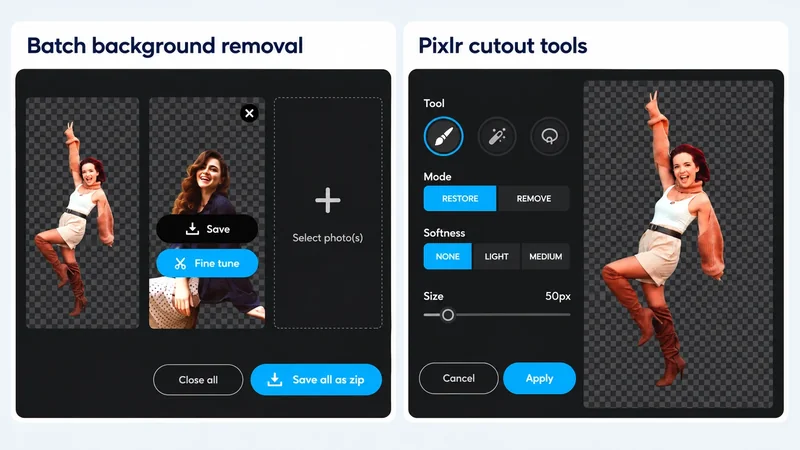
Need to remove backgrounds from several photos online at once? Pixlr’s Background Remover lets you upload them together, correct each cutout, and download all the results in a single ZIP file.
After the backgrounds are removed, you can review each cutout and fix any areas the automatic tool missed. Restore a missing part or erase leftover background, then download the corrected set together. There’s no need to start over with a separate tool.
You can keep the results transparent or add a white or black background. Auto Crop also trims excess space around each person or object, helping you prepare the images for use in a layout.
Key features
- Free online background removal for multiple images.
- Manual controls to restore or remove parts of a cutout.
- Automatic cropping to trim empty space.
- Transparent, white, and black background options.
- Individual PNG downloads or a ZIP containing all results.
What to know
Pixlr’s official guide lists support for images up to 4096 × 4096 pixels. If your originals are larger, check the downloaded dimensions before using the results in a design that needs full resolution. Background removal runs in batch, but manual corrections are made to individual images.
Best fit: Multiple cutouts that need quick corrections and a convenient ZIP download.
5. Slazzer – Best for Large-Scale Desktop Background Removal
Slazzer’s desktop app can remove backgrounds from 1,000 images in a batch. That makes it useful for large product collections and photo shoots where processing files one by one would take too long.
Available for Windows, macOS, and Linux, the desktop app lets you drag in your files and apply shared output settings. You can keep the backgrounds transparent for design projects or choose a solid color for consistent product photos.
There’s more you can do with the results. Slazzer offers tools to restore accidentally removed parts, erase leftover background, replace or blur backgrounds, and add AI-generated shadows. API and plugin integrations also let you connect background removal to software you already use.
Key features
- Desktop apps for Windows, macOS, and Linux.
- Batch background removal, with up to 1,000 images added from a local folder at a time.
- Shared output settings for transparent or solid-color backgrounds.
- Additional tools for cutout corrections, background changes, blur, and shadows.
- API and plugin integrations.
What to know
The desktop app requires an internet connection to process images. Slazzer’s editing features can differ between its desktop app, online tools, and integrations, so check the version you plan to use if you need more than batch background removal.
Best fit: Large photo collections that are easier to manage through a desktop app.
6. Clipping Magic – Best for Precise Background Removal with Manual Control
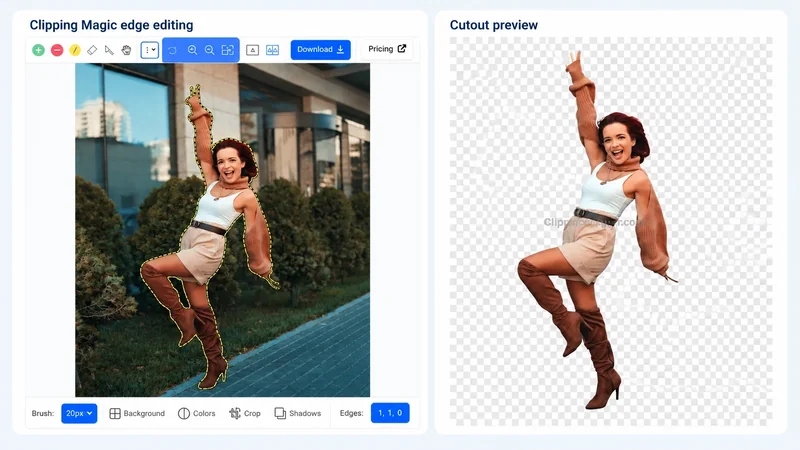
Clipping Magic gives you more control over where a cutout begins and ends. After the automatic removal, you can mark areas to keep or remove and refine edges that need closer attention.
A dedicated hair tool helps preserve fine strands, while a precision cutting tool lets you trace unclear edges—for example, a light-colored product against a pale background. You can also smooth jagged outlines and reduce traces of the old background color.
Once the cutout is ready, you can add a solid-color background or shadow, straighten a tilted photo, and crop it. For a collection of similar images, saved settings help keep backgrounds, framing, and output sizes consistent.
Key features
- Automatic background removal with manual keep/remove controls.
- Background replacement with a solid color.
- Tools to add shadows, straighten tilted photos, and crop images.
- Reusable settings for processing multiple images.
What to know
You can preview and edit images for free, but downloading results requires a subscription. Bulk processing is available on Standard and higher plans. Detailed corrections take time and practice, and adding a photo background requires another editor.
Best fit: Difficult cutouts that need careful manual corrections.
7. Leonardo.ai API – Best for Migrating an Existing Remove.bg Integration
If your app or website already uses the Remove.bg API, Leonardo.ai is the official migration destination. Remove.bg’s background removal API has joined Leonardo.ai, which is also part of Canva.
The API lets your software send an image for background removal and retrieve the result automatically. This is useful for services that process customer uploads or product photos without someone editing each file by hand. Leonardo’s migration guide explains how to adapt an existing Remove.bg integration.
Leonardo also offers API tools for upscaling and generating new scenes, allowing developers to add more steps after background removal.
Key features
- Automated background removal for apps and websites.
- Official migration guidance for existing Remove.bg integrations.
- Options to receive results in the same request or retrieve them after processing.
- Additional API tools for image upscaling and scene generation.
What to know
Switching requires a Leonardo account with API access, a new API key, and changes to your existing code. API usage is billed separately from Leonardo’s web subscriptions. Output formats and processing limits also differ, so test your usual images and workloads before switching.
Best fit: Developers and teams migrating an existing Remove.bg API integration.
How to Choose the Right Remove.bg Alternative
Compare Results on Your Own Photos
In our tests, these tools generally removed backgrounds well, with results similar to Remove.bg. But the best result can depend on the photo. Hair, fur, glass, and objects that blend into the background can be harder to handle. Try the same photo in a few tools, then check for missing details or leftover background.
Check Download Quality and Free Limits
Some tools let you remove backgrounds for free but charge for high-resolution downloads or watermark removal. Check the downloaded image, not just the preview, especially if you plan to print it. If your photo is small or blurry, you may also need enhancement or upscaling to make it clearer.
Consider Any Extra Editing You Need
Do you only need a transparent PNG, or do you want to add a new background or shadow? You may also need tools to bring back parts that were accidentally removed or erase bits of background left behind. Choose a tool that lets you make these changes easily.
Think About How Many Images You Need to Edit
For one or two photos, a simple online tool may be enough. For many images, look for tools that let you edit them together, apply the same settings, and download the results in one ZIP file. Developers adding background removal to an app or website should also compare API costs and limits.
Frequently Asked Questions
It depends on what you need. Adobe Firefly is worth trying for a simple cutout, Pixlr offers manual corrections and ZIP downloads, and Artguru is useful when your photo also needs enhancement. Try the same image in a few tools to see which gives you the best result and fits the way you work.
In our tests, both Artguru and Adobe Firefly offered free downloads up to 4K.
For restoring missing parts or erasing leftover background, try Pixlr, Slazzer, or Clipping Magic. Artguru, Photoroom, and Slazzer support background replacement. Photoroom and Slazzer also offer background blur and shadows.
Yes. Many Remove.bg alternatives offer APIs, including Artguru, Photoroom, Slazzer, Clipping Magic, Leonardo.ai, and Adobe.
Ready to move on from Remove.bg?
Finding the right Remove.bg alternative starts with a photo you actually want to use. Try one or two tools from this list, compare the results, and see how easily they let you finish the job.