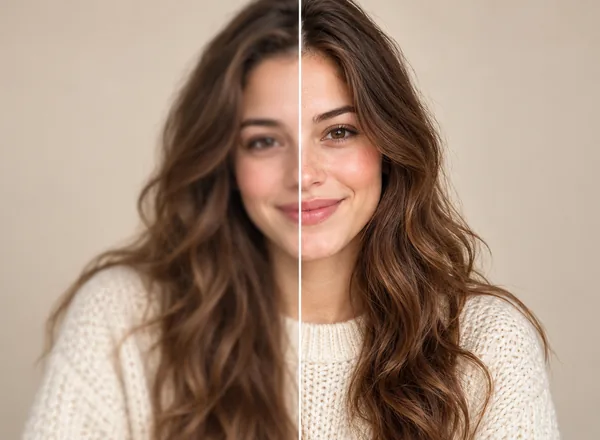


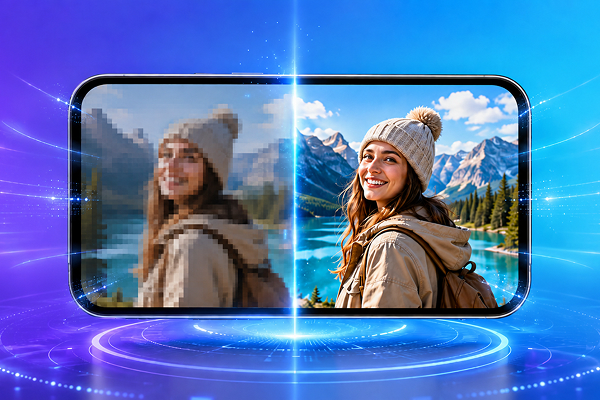
A video can look fine when you record it, then suddenly appear soft, shaky, or blurry when you play it back. Maybe it was filmed in low light, sent through a messaging app, uploaded to social media, or recorded while your hand was moving. Whatever the reason, it is frustrating when an important clip does not look as clear as you expected.
If you are looking for how to unblur videos on iPhone, there are some practical options you should consider. In this article, we will dive into those to make your videos better to share with your friends and loved ones.
Can You Really Unblur a Video on iPhone?
The answer is surprisingly yes. However, the output quality mainly depends on what caused the blur. If your video is soft at low level, the iPhone Photos app will be a good choice to start with. It can sharpen the video while reducing noise. You can also adjust contrast and definition for better results.
On the other hand, if the video is very blurry because it was taken in poor conditions or compressed heavily, the Photos app is not enough. It’s time for an AI tool to shine and help you enhance your videos to the best automatically.
Why Does Your iPhone Video Looks Blurry?
Before you try to fix blurry video on iPhone, it’s highly recommended looking for the main cause behind it because different causes will require different solutions.
1. Camera shake
Camera shake is one of the most common reasons why your iPhone video looks blurry. A movement, even the slightest one, while recording often makes your video unstable.
2. Motion blur
Fast-moving subjects, such as pets, kids, cars, or sports action, can appear blurry because the camera did not capture them sharply enough.

3. Low light
In photography, lighting is the most important factor to make attractive results. Poor light conditions often come with blurry output. Facial details are lost during recording, which is unavoidable because of lacking sufficient light.
4. App compression
Videos shared through messaging or social media apps are compressed heavily to reduce file size. The compression makes the video lose details or look pixelated afterwards.
5. Low export quality
If you save or export a video at a lower resolution, it may look blurry even if the original was clear.
Method 1. Use the iPhone Photos App for a Quick Fix
The easiest way to make video clearer on iPhone is to start with the built-in Photos app. It is already on your phone, and it works well for small improvements.
Steps for video sharpening with iPhone Photos
- Open the Photos app.
- Select the blurry video.
- Tap Edit.
- Tap the adjustment icon.
- Try increasing Sharpness slightly.
- Adjust Definition to bring out more detail.
- Increase Contrast a little (optional)
- Use Noise Reduction (optional)
- Tap Done to save
Do not push every slider to the maximum. Too much sharpness can create harsh edges, halos, or an unnatural look. A small adjustment usually looks better than an extreme one.
For a slightly blurry video, start with gentle edits:
| Adjustment | What It Helps With | Suggested Use |
| Sharpness | Makes edges look clearer | Use lightly |
| Definition | Adds local detail | Good for soft videos |
| Contrast | Adds visual depth | Helpful for flat-looking clips |
| Noise Reduction | Reduces grain | Useful for low-light videos |
| Exposure | Brightens or darkens video | Adjust only if needed |
Method 2. Avoid Extra Compression
Heavy compression leads to a blurry video most of the time. Video shared through social network sites or messaging apps are compressed automatically to optimize the file size. Therefore, if you try to fix the compressed video, the result may not be good enough. Instead of that, you should start with the original one if possible for better output.
Keep the original video
The original video saved in your iPhone Photos library usually has more detail than a version downloaded from a messaging app. If you want the best result, enhance or edit the original file first.

Use AirDrop or cloud links
When sending a video to another device, use methods that keep more quality:
- AirDrop between Apple devices
- iCloud link
- Google Drive
- Dropbox
- Direct USB transfer to a computer
Try to avoid editing a video that has already been sent back and forth through messaging apps several times. Each round of compression can make the file softer.
Method 3. Use AI to Unblur Videos on iPhone
If the built-in Photos app does not do enough, an AI tool can be a better option. This is especially useful when you want to improve video quality on iPhone without adjusting a long list of manual settings.
AI video enhancement can help with:
- Soft details
- Low-light grain
- Mild blur
- Compression artifacts
- Low-resolution clips
- Videos that look unclear on larger screens
For a simple online user-friendly workflow, Artguru Video Enhancer will be the best choice to enhance video quality up to HD/4K resolution in seconds. The enhancement process is automatically handled by Artguru without any manual editing. You can also preview the final result before downloading it into your device.
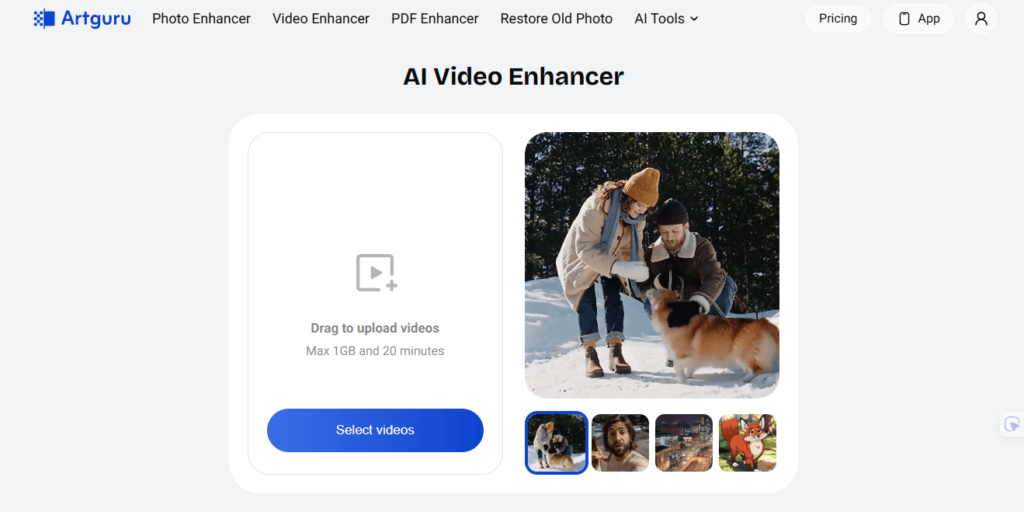
How to use Artguru Video Enhancer
Step 1. Open Artguru Video Enhancer
Go to Artguru Video Enhancer and upload your video right in your browser.
Step 2. Let AI Enhance Your Video
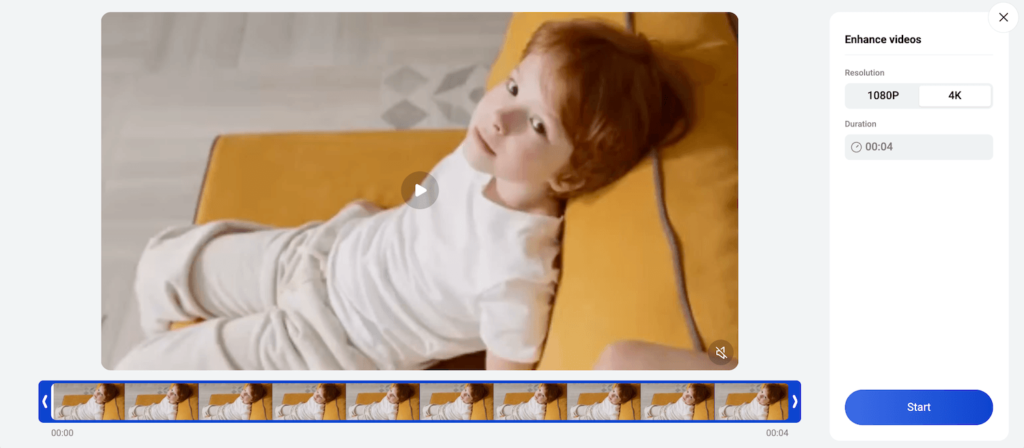
Artguru processes the video automatically. The tool can help improve clarity and make the video easier to watch. For longer or advanced video tasks, credit use may depend on the video length.
Step 3. Preview & Download
Use the before-and-after comparison tool to check the result. Look at faces, text, edges, and background details. You should view it at a larger size before deciding whether the result is ready.
Method 4. Upscale Low-Resolution iPhone Videos
Although unblurring and upscaling sounds similar, they are, in fact, totally different from one another. While unblurring focuses on making a soft or unclear video look sharper, upscaling will increase the video resolution. If your iPhone video looks blurry because it is too small or low-resolution, an upscaler may be a good help.
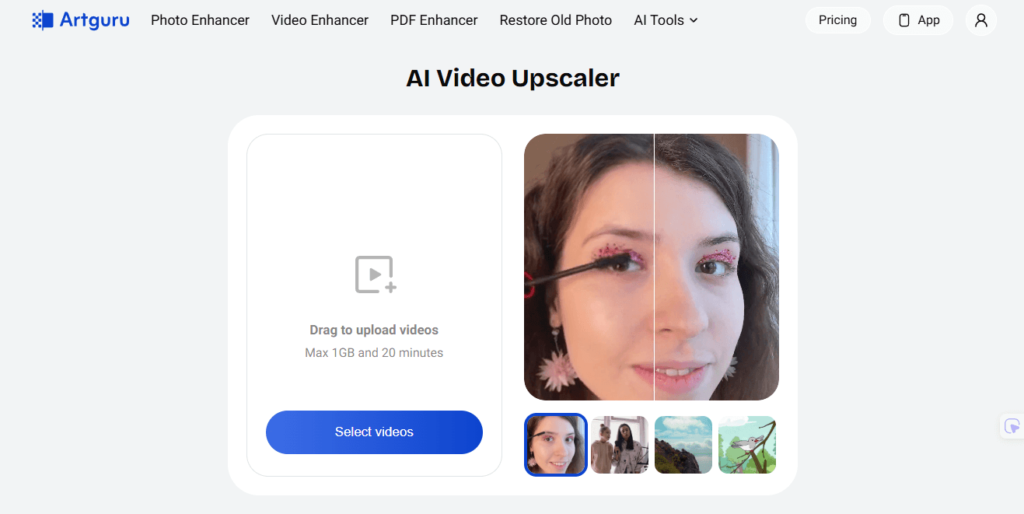
For this use case, Artguru Video Upscaler can be a relevant option. It is created for upscale video online tasks and can enhance video quality to HD/4K.
When to use video upscaling
Use video upscaling when:
- The video resolution is low.
- The clip looks soft on a larger screen.
- You want a clearer version for posting or presentation.
- The video is not severely motion-blurred.
When not to rely only on upscaling
Upscaling may not fully fix a video if:
- The camera moved too much.
- The subject was already smeared by motion blur.
- The video is extremely compressed.
- Important details were never captured.
iPhone Photos vs AI Video Enhancer
For everyday iPhone videos, start with the easiest method. If the result still looks unclear, move to an AI video enhancer for iPhone workflow like Artguru.
| Need | Better Choice | Why |
| Quick small improvement | iPhone Photos | Built in and easy to use |
| Slight sharpness adjustment | iPhone Photos | Good for casual edits |
| Low-light grain or soft details | AI video enhancer | More automated enhancement |
| Low-resolution video | AI video upscaler | Helps increase output resolution |
| Social media content | iPhone Photos or AI enhancer | Depends on how unclear the clip is |
| Important work or product clip | AI enhancer + manual review | Better for a cleaner final result |
| Precise creative control | Desktop video editor | More manual tools and timeline control |
FAQ
Can I unblur a video by only using the iPhone Photos app?
Practically, yes. You can make use of the Photos app to make some basic adjustments like definition, contrast or sharpness if your video is just a slightly blurry one. However, if you need a simple automatic workflow with better result, an AI video enhancer like Artguru is highly recommended.
What is the easiest way to sharpen a video on iPhone?
If you are looking for something automatically handling your videos, Artguru Video Enhancer can help you with that by providing you the high quality result in seconds. All you need to do is upload your video to Artguru and let AI do the magic for you.
Should I use a video enhancer or video upscaler?
The answer will depend on what conditions of your video are in. If you want to fix the softness and noise of your video, a video enhancer will be the best choice. However, when your video resolution is too low to display on a larger screen, a video upscaler is the most suitable solution. Please keep in mind that for some situations, both enhancement and upscaling may help.
Can I enhance videos without installing an app?
Yes. An online tool like Artguru Video Enhancer lets you upload, preview, and download an enhanced video through a browser, which can be simpler than learning advanced editing software.
Conclusion
Learning how to unblur videos on iPhone starts with choosing the right fix for the problem. While the iPhone Photos app can help you with your slightly blurry video, an AI Video Enhancer is advisable when it comes to noisy, compressed or low-resolution videos. For a simple solution working right on your browser, try Artguru Video Enhancer to improve video clarity, or use Artguru Video Upscaler when the main issue is low resolution.