Passport Photo Maker
Turn your portrait into a passport-size photo in seconds, ready for digital use or printing.
Drop images here or paste (Ctrl+V)
Drop images here or paste (Ctrl+V)
- Passport
- Driver License
- ID Card
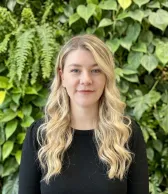
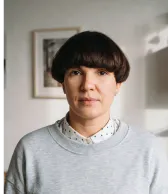
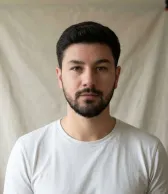
How to use the passport photo maker
Create your passport or ID photo in four steps, from uploading a portrait to downloading a single photo or print sheet.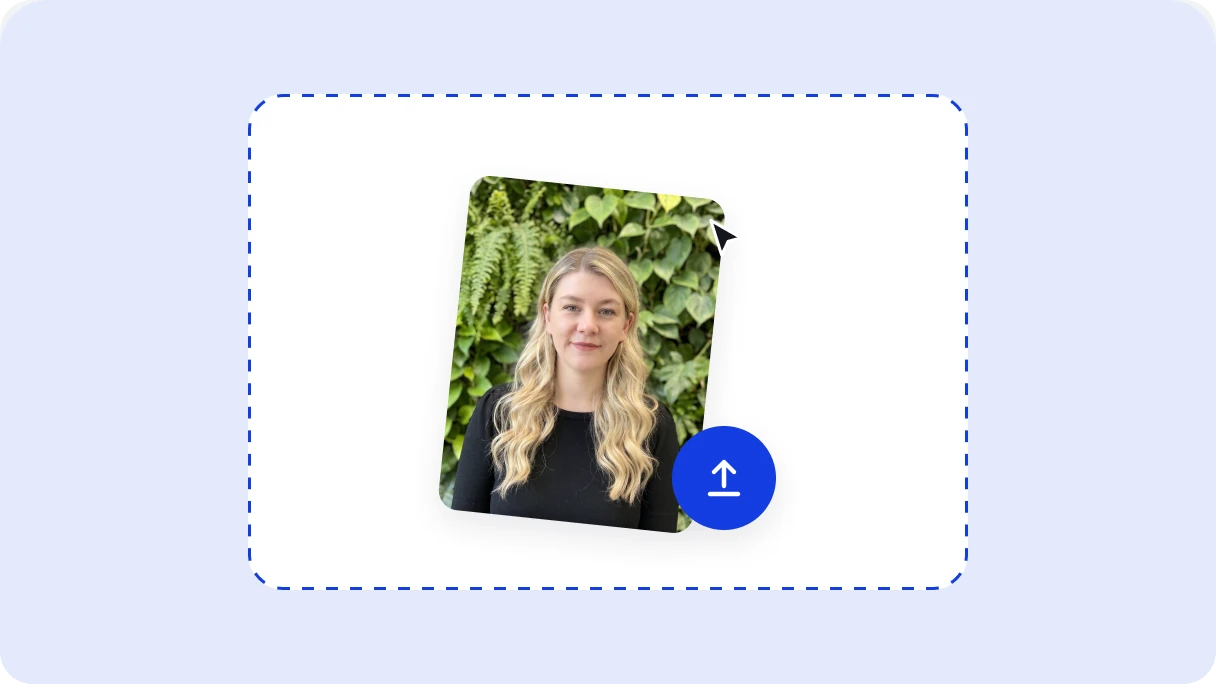
1. Upload your photo
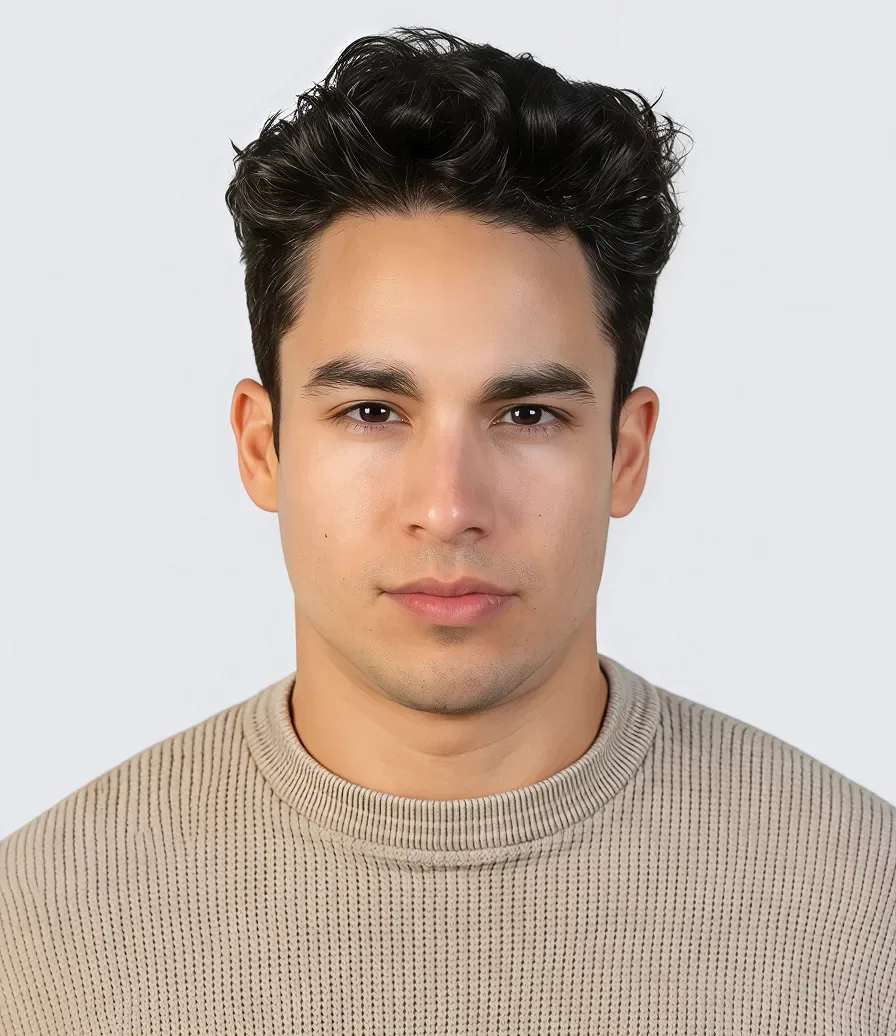
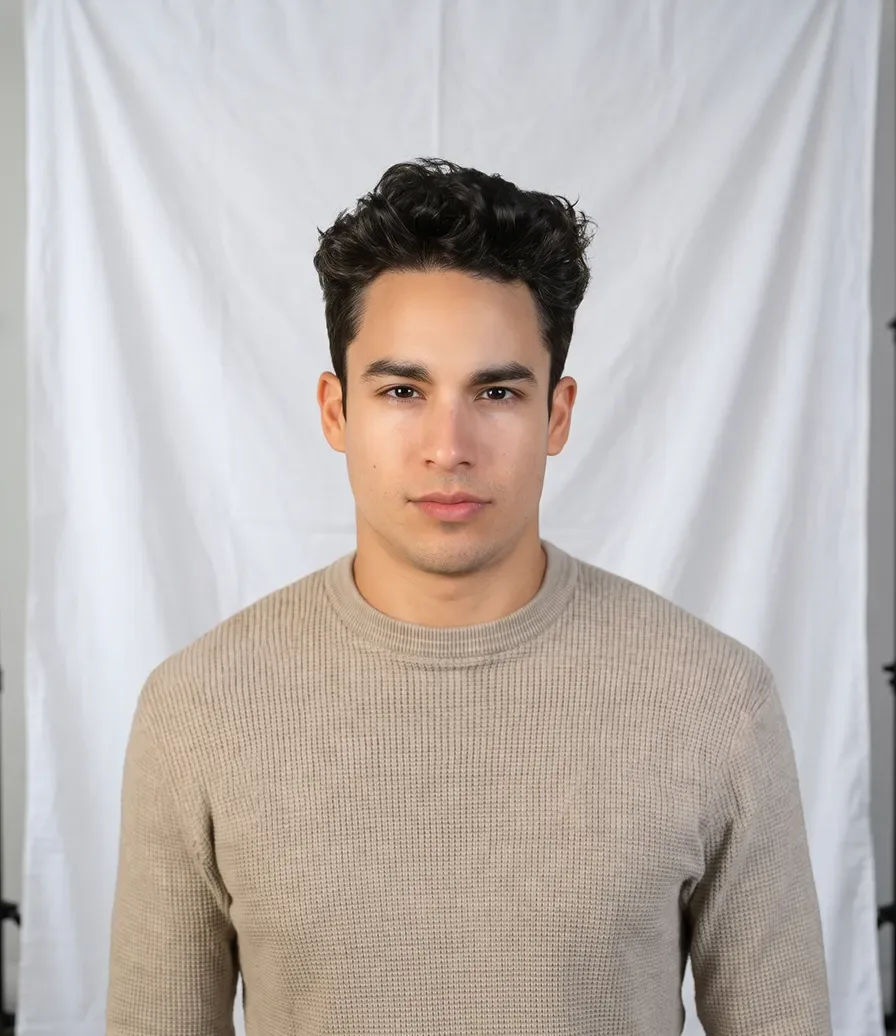
Take or choose a front-facing photo of yourself, then upload it. For best results, use a clear, evenly lit photo without beauty filters. Include your full head and shoulders, with room for cropping.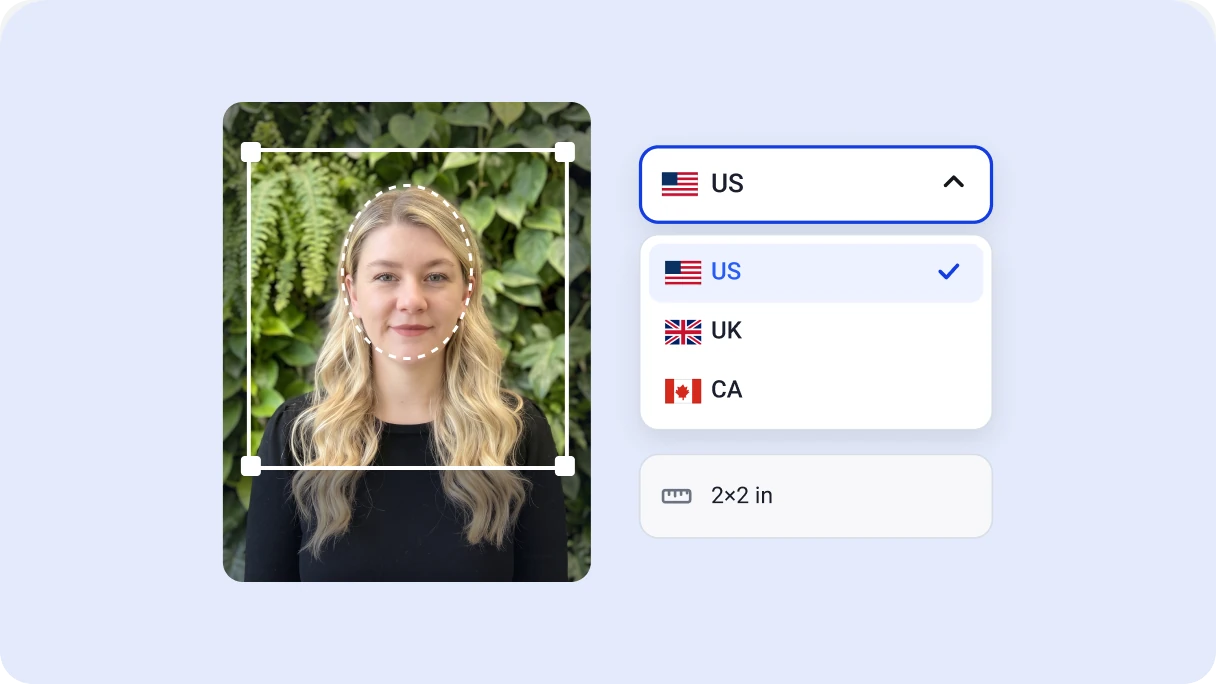
2. Set your photo size
After upload, the tool detects your face and adjusts the crop to help center your head. Choose your country and photo type, or enter a custom size. Check the preview, then click Start.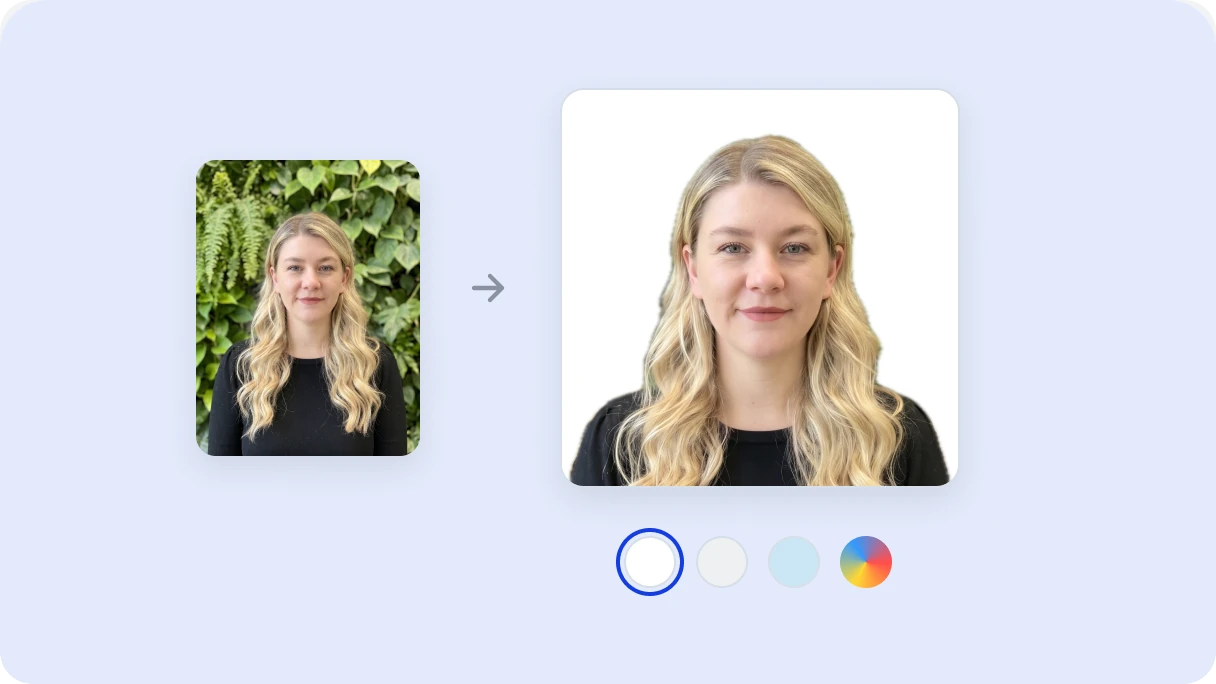
3. Change the background
The original background is automatically removed and replaced with solid white. If your passport or ID photo requires a different color, choose a preset or set a custom background color.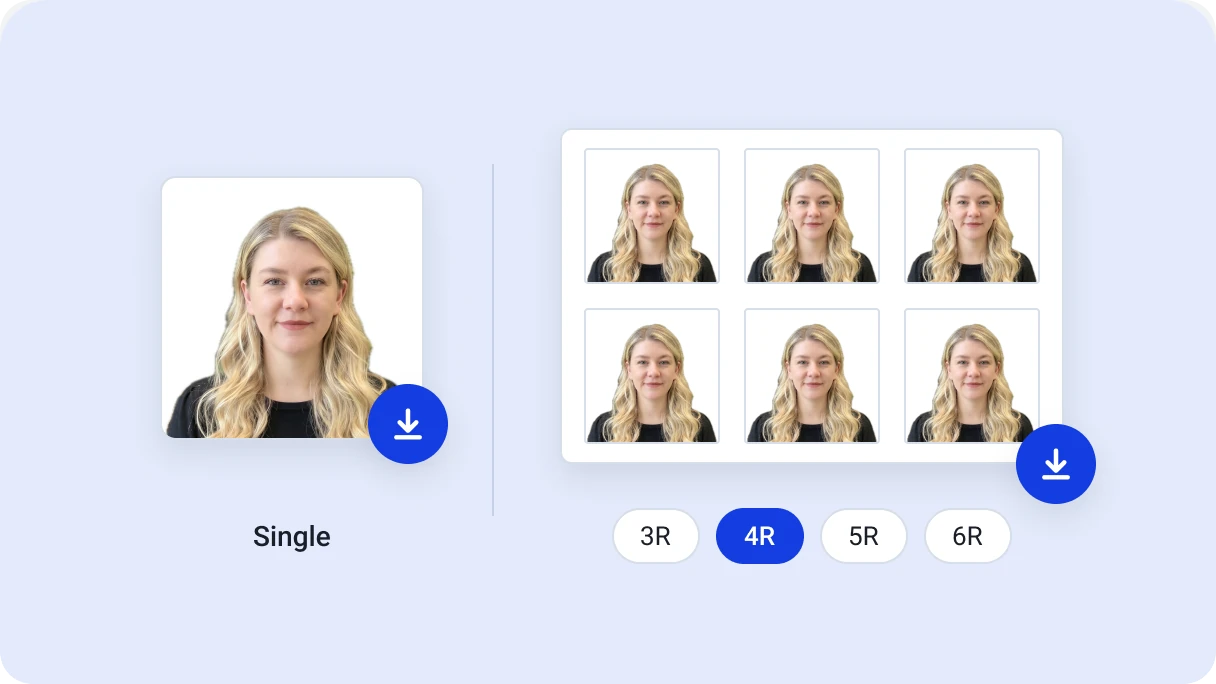
4. Preview and download
Preview the result and choose PNG or JPG to download. You can save a single photo or a sheet with multiple copies for printing. Print sheets are available in 3R, 4R, 5R, and 6R sizes.Why choose Artguru’s online passport size photo maker?
Easily make passport photos without visiting a photo studio or using professional editing software. One tool for passport, visa, and other ID photos across different countries and regions.Get the proper passport photo size with less effort
Artguru’s passport photo maker automatically detects your face, straightens your portrait, and crops it for a properly framed passport photo, reducing the need for manual adjustments. Presets for multiple countries help you get the proper photo size without remembering exact dimensions. For more flexibility, you can also set custom dimensions in inches, centimeters, or millimeters, such as 2 × 2 inches.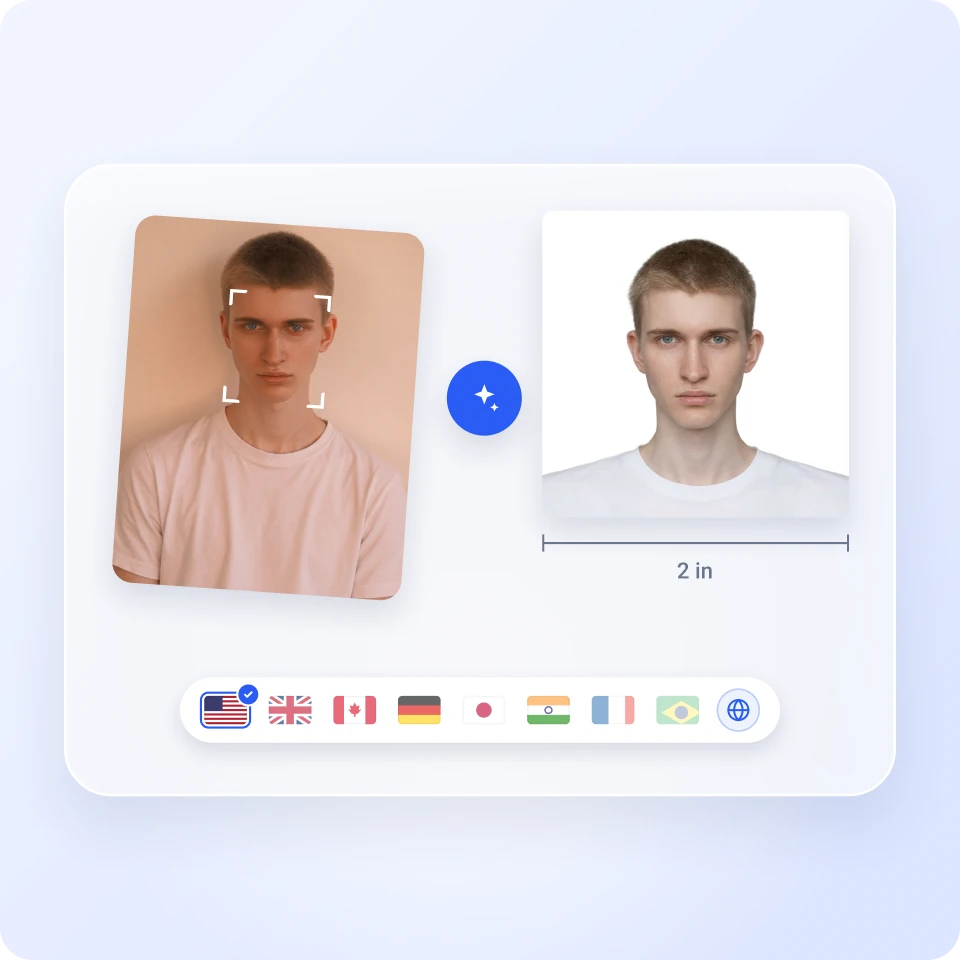
Match your passport photo’s background requirements
Replace your photo’s original background with white, another preset color, or a custom shade to meet your ID photo’s background requirements. Whatever color you choose, precise background removal keeps hair edges natural and facial features unchanged.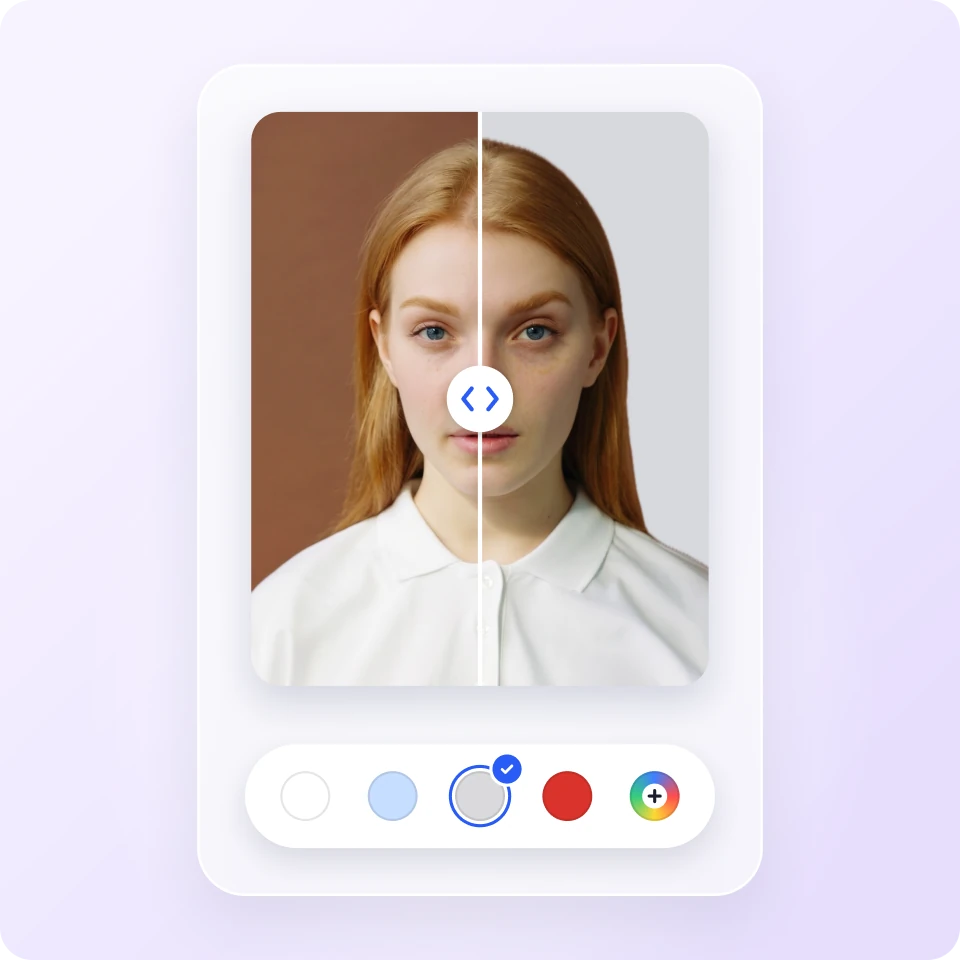
Print sharp passport photos with automatic layouts
Powered by Artguru’s AI enhancement technology, your photo is automatically improved for sharp, detailed passport-size prints. Output at 300 DPI or higher supports clear printing at home or at a photo shop. To save you time on layout, this passport photo tool also arranges copies of your photo on a single sheet, with paper options including the popular 4R (4 × 6-inch) size.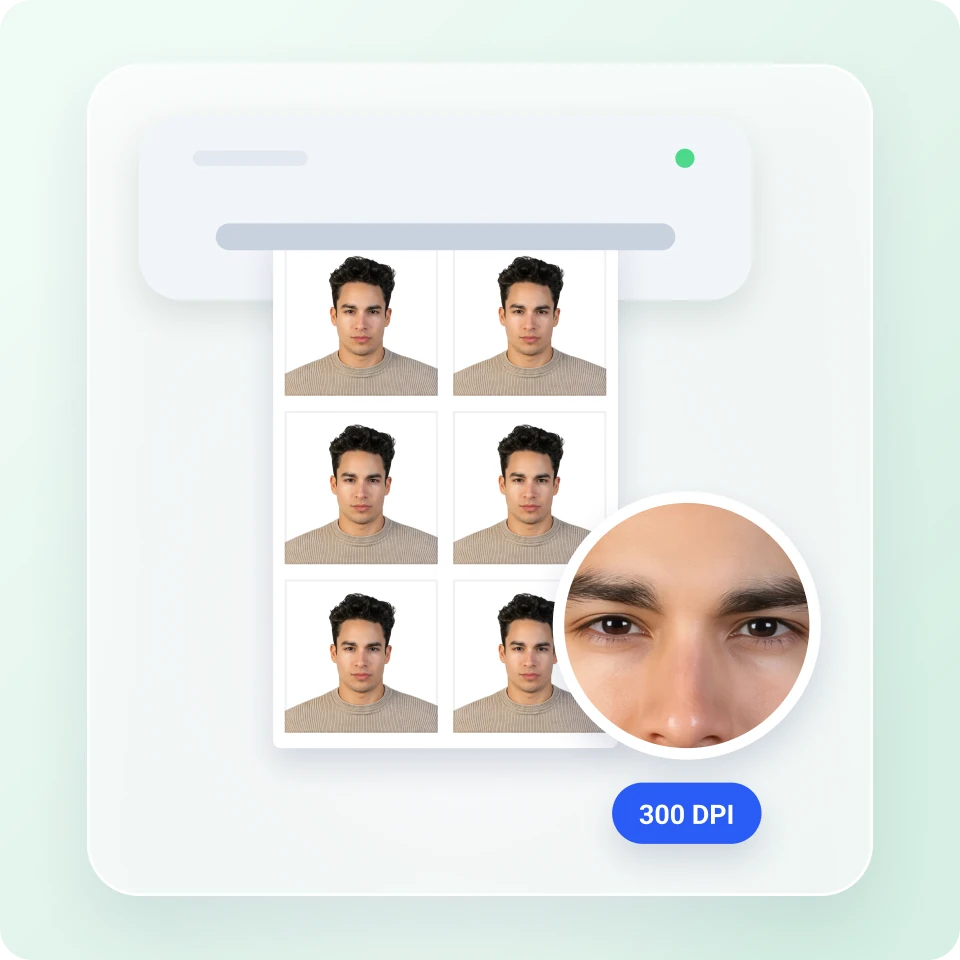
Tips for taking a photo for your passport
A well-prepared photo helps you create a passport photo that meets the requirements.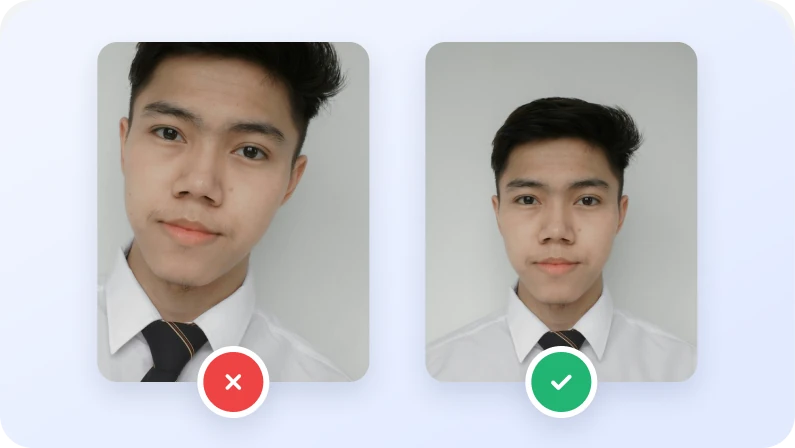
Face the camera and leave room for cropping
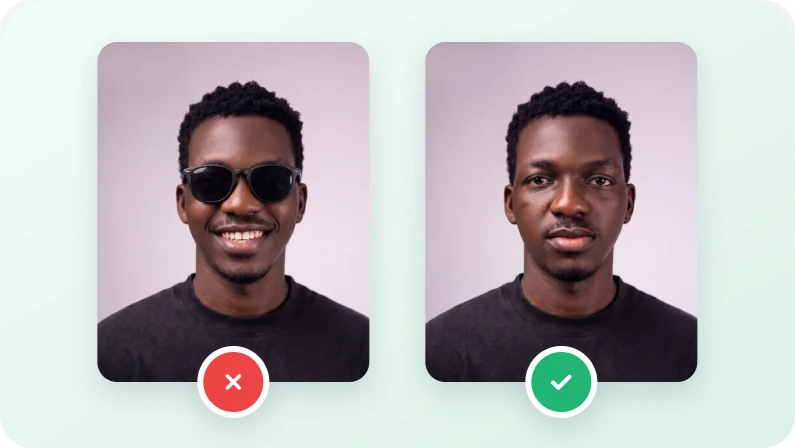
Keep the camera at eye level and look straight ahead with your head straight. Include your full head and shoulders, leaving space around your head for cropping. If the top of your head is cut off, take a new photo.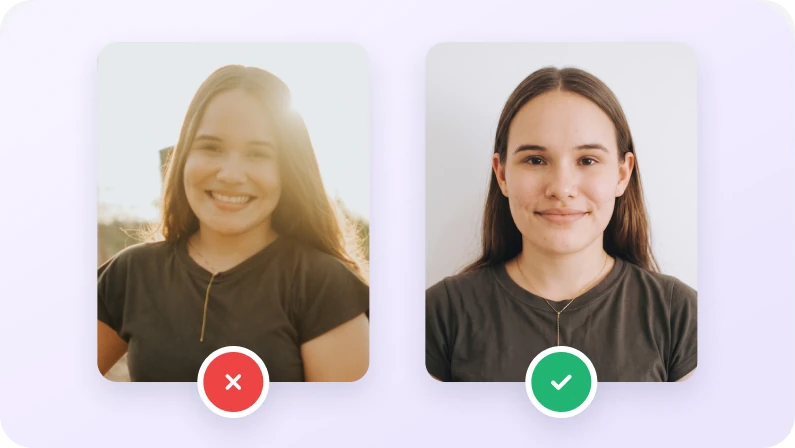
Avoid busy backgrounds and harsh lighting
Take your photo against a plain, single-color background without distracting objects. Use soft light from in front of you. Avoid shadows on your face and background, strong backlighting, and glare.